How to Learn a Language with iPhone Home Screen Widgets
You probably look at your iPhone dozens of times a day. Each of those glances is a chance to see a word in the language you are learning. iPhone widgets make that possible: they show information from an app right on your Home Screen or Lock Screen, without opening anything. This guide shows how to set up a language widget and how to get the most out of it.
Why widgets work for vocabulary
Learning vocabulary is mostly about repetition. You need to meet a word several times, spread out over time, before it sticks. Widgets give you that repetition for free, because you see your Home Screen whether you plan to study or not. We go deeper into the research in how passive learning helps you memorize words.
Step 1: Pick a language widget app
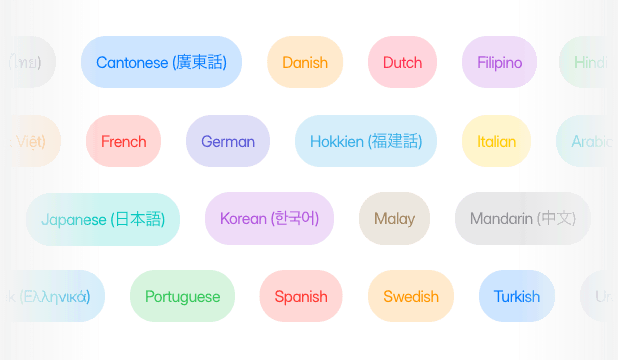
Several apps offer vocabulary widgets. Brill is one of them. It supports 37 languages, shows each word with its meaning and a pronunciation guide, and lets you hear the word with audio. Download it from the App Store, open it once and choose your language.
Step 2: Add the widget to your Home Screen
Apple's steps for adding widgets are:
From the Home Screen, touch and hold a widget or an empty area until the apps jiggle.
Tap the Edit button in the upper-left corner.
Tap Add Widget.
Search for Brill, choose a widget size, then tap Add Widget.
Tap Done.
Place it on your first Home Screen page, where you will see it most. A word you have to swipe to find is a word you will not see.
Make the widget part of your routine
A widget works best when it sits somewhere you look without thinking. Put it next to the apps you open most, like Messages or your browser, rather than on a page you rarely visit. If your Home Screen is crowded, you can stack it with other widgets, but keep in mind that a widget hidden behind others in a stack will be seen less often. Some learners add two widgets, one for words and one for phrases, so every unlock shows something new.
Step 3: Add a Lock Screen widget
With iOS 16 or later, you can also add widgets to your Lock Screen. That way you see a word every time you check the time, even before you unlock your phone.
Touch and hold the Lock Screen until the Customize button appears, then tap Customize.
Tap Add Widgets.
Tap or drag the widget you want to add.
Swipe down from the widgets list, then tap Done.
In Brill, the Lock Screen widget is part of Brill Pro.
Step 4: Choose how often words change
How often a new word appears is a trade-off. A word that stays all day gets many views and becomes very familiar. A word that changes often gives you more variety. Brill's free plan changes the word once a day. Brill Pro lets you switch to hourly or every 15 minutes, and you can cycle to the next word with a button on the widget.
Tips to make words stick
Say it out loud. Tap the audio button and repeat the word. Hearing and speaking it builds a stronger memory than reading alone.
Guess before you look. With Brill Pro you can blur the English meaning and tap to reveal it, so each glance becomes a small quiz.
Add phrases, not just words. A phrases widget shows short, useful expressions you can use straight away.
Learn your own words. Add vocabulary from your class, your trip or your job as custom words, so the widget shows what you actually need.
Turn on a daily reminder. A gentle nudge brings you back to the app to look at a word in more detail.
Keep a course going too. Widgets are great for vocabulary, but grammar and conversation still need active practice.
What widgets cannot do
Widgets on iPhone are designed for quick, glanceable information. They are not a full course, and they will not teach you grammar or hold a conversation with you. Think of a language widget as the part of your routine that keeps vocabulary in front of you on the days you do not have time for anything else.
Get started
Setting up a language widget takes about a minute. Download Brill, pick one of 37 languages, and add the widget to your Home Screen. The next time you pick up your phone, your first word will be waiting.
Learn a word every time you check your phone
Brill puts a new word on your iPhone Home Screen in 37 languages, with pronunciation and audio. Free to start.